CSS Position

CSS Position
CSS position can be used to control the placement of elements within a web page. The position property can have these values:
static- defaultrelativefixedabsolutesticky
CSS position: static
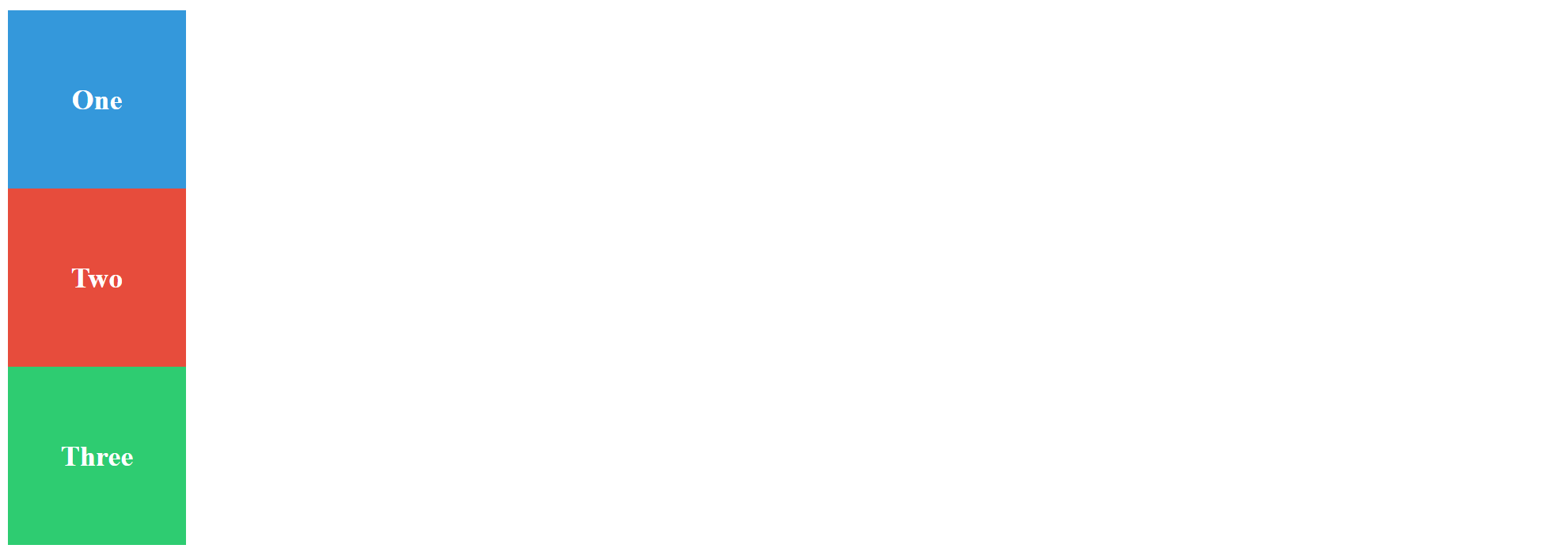
This is the default behavior. Elements are laid out in the normal document flow, one after another, without any special positioning. Static elements are not affected by values like 'top', 'left'.
CSS position: relative
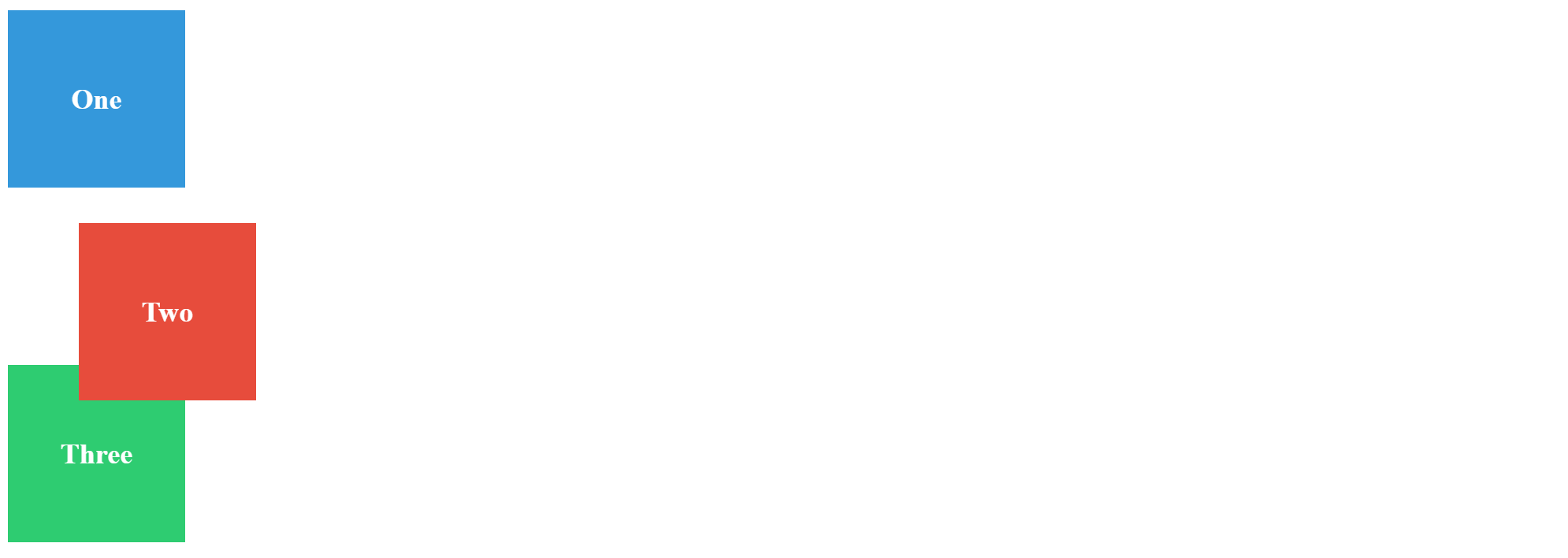
An element is positioned relative to its normal position in the document flow. Setting the top, right, bottom, and left properties will modify its normal position. Even though the element appears shifted, it still reserves its original space in the flow. Other elements behave as if it hasn’t moved, which can cause overlaps.
CSS position: fixed
An element is positioned relative to the viewport, which means it always stays in the same place even if the page is scrolled. The top, right, bottom, and left properties are used set the final location of the element. A fixed element is removed from the document flow, so it doesn’t leave a gap. Other elements flow as if it isn’t there.
CSS position: absolute
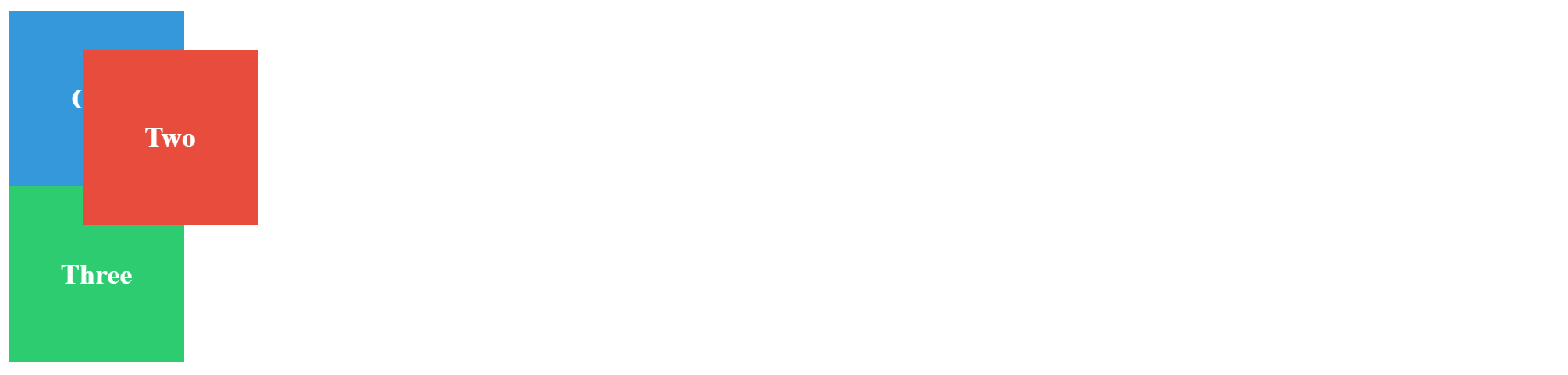
The element is completely removed from the normal document flow and positioned relative to its nearest positioned ancestor (any ancestor with a position other than static). If none exists, it is positioned relative to the (the page itself). Since the element is taken out of the flow, it doesn’t reserve space. Other elements behave as if it doesn’t exist, so absolute positioning often leads to overlapping content.
CSS position: sticky
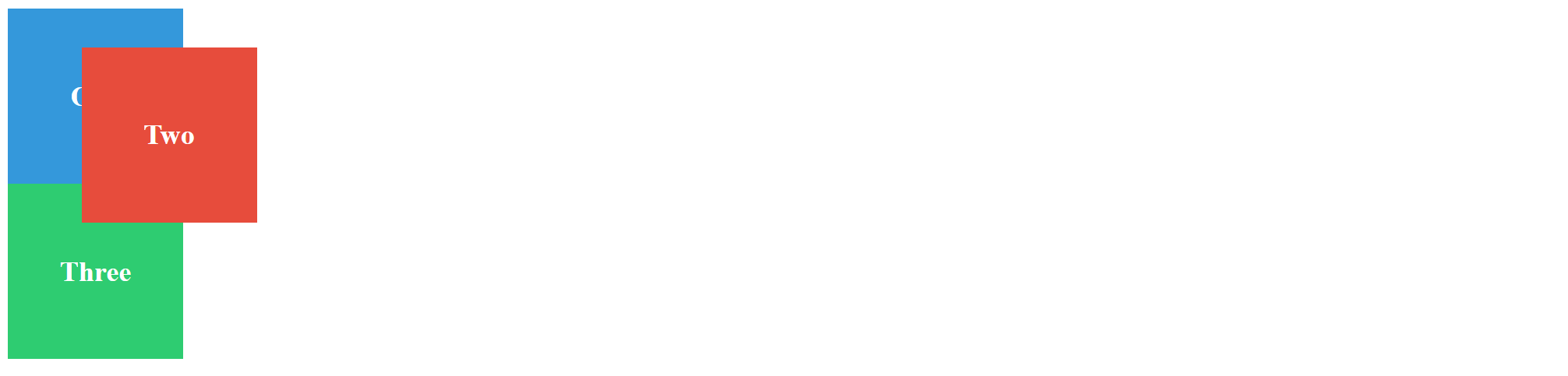
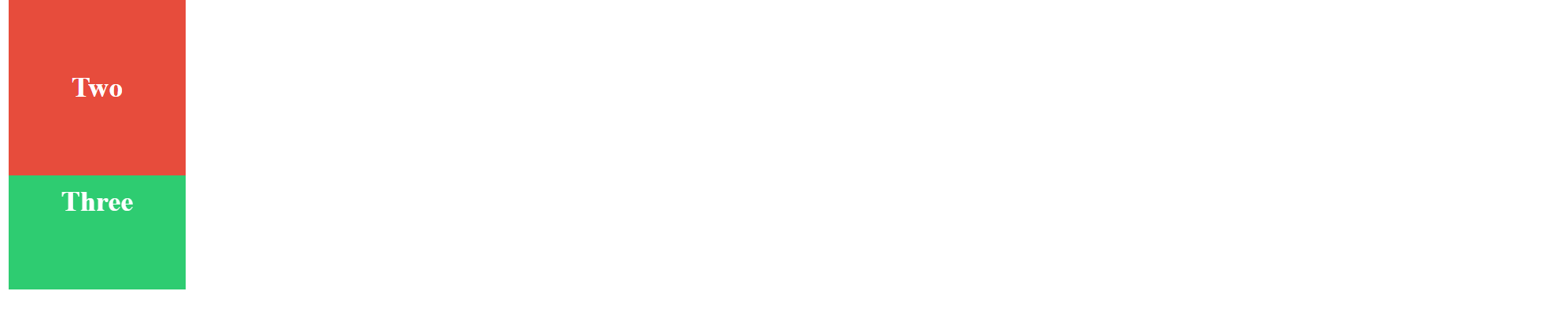
A hybrid of relative and fixed. A sticky element starts off as relative (in the flow), but once the user scrolls and the element reaches a defined offset (top, right, bottom, or left), it “sticks” to that position — behaving like fixed. While sticky, the element still occupies its space in the document flow, so other elements won’t overlap it. Unlike fixed, it’s only sticky within its parent container.
Examples
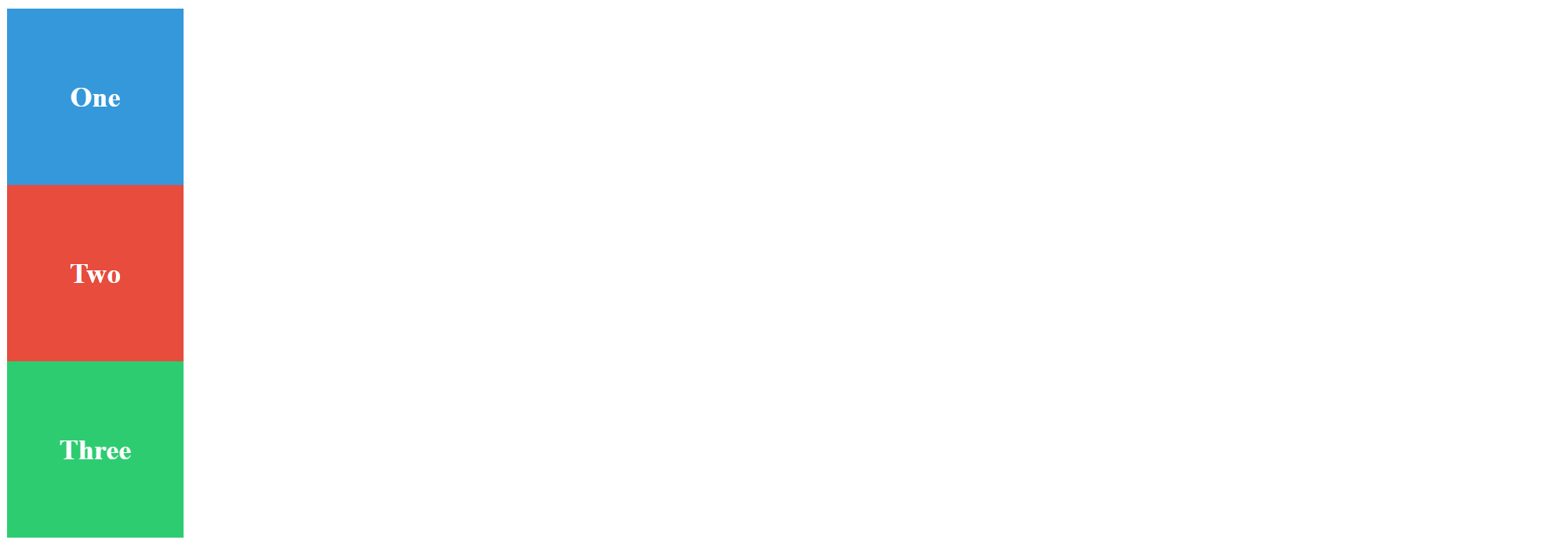
This is base code for the demos
<div class="box box1">One</div>
<div class="box box2">Two</div>
<div class="box box3">Three</div>
<style>
  .box {
    width: 100px;
    height: 100px;
    color: #fff;
    font-weight: bold;
    display: flex;
    align-items: center;
    justify-content: center;
  }

  .box1 { background: #3498db; } /* blue */
  .box2 { background: #e74c3c; } /* red */
  .box3 { background: #2ecc71; } /* green */
</style>
static
relative
<style>
  .relative {
    position: relative;
    top: 20px;
    left: 40px;
  }
</style>

<div class="box box1">One</div>
<div class="box box2 relative">Two</div>
<div class="box box3">Three</div>
absolute
<style>
  .absolute {
    position: absolute;
    top: 30px;
    left: 50px;
  }
</style>

<div class="box box1">One</div>
<div class="box box2 absolute">Two</div>
<div class="box box3">Three</div>
fixed
<style>
  .fixed {
    position: fixed;
    top: 10px;
    right: 10px;
  }
</style>

<div class="box box1">One</div>
<div class="box box2 fixed">Two</div>
<div class="box box3">Three</div>
sticky
<style>
  .sticky {
    position: sticky;
    top: 0; /* sticks to top of viewport */
  }
</style>

<div class="box box1">One</div>
<div class="box box2 sticky">Two</div>
<div class="box box3">Three</div>
<p style="margin-top: 2000px;">Scroll down to test sticky!</p>
When scrolled
Reference
https://www.w3schools.com/css/css_positioning.asp
AI-generated Content Disclaimer
Some portions of this text were created with the assistance of AI language models. While effort has been made to ensure accuracy, the content may contain errors or incomplete information. Please use your own judgment and verify details when necessary.